See where liquidity builds.
Watch resting depth evolve across price and time. Trade bubbles, adjustable heat sensitivity, and selectable time and price ranges help you inspect the auction.
Explore BookMap → FastDOMDownload Beta ↓
A focused execution environment for active Schwab traders. Send orders through Schwab’s Trader API with a fast DOM workflow, chart trading, and configurable hotkeys and buttons. Bring Bookmap, FootPrint, and risk-sized entries to your NinjaTrader workflow.
CONTEXT → DECISION → EXECUTION
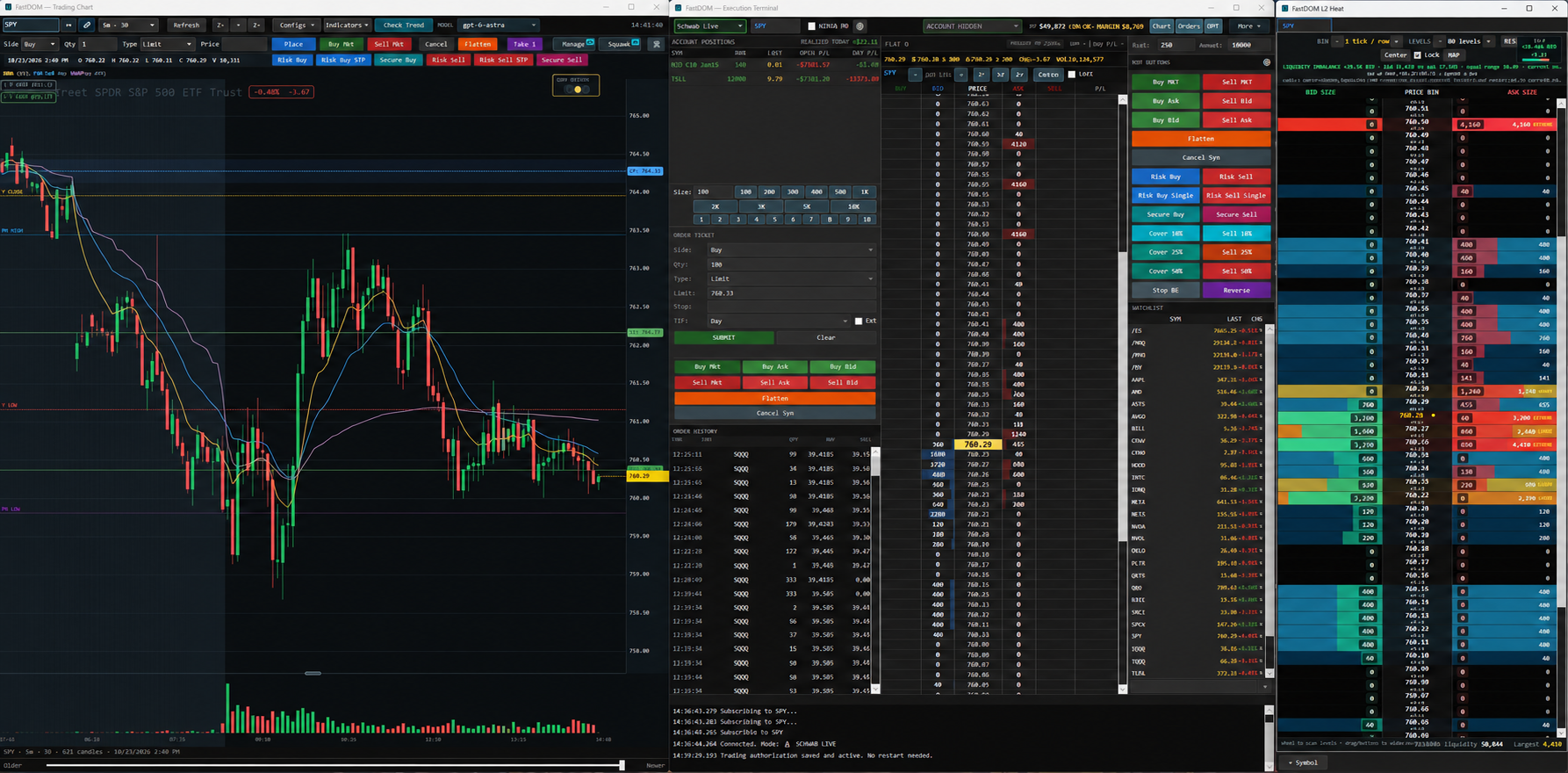
A focused alternative to the thinkorswim trading interface: direct API order submission, configurable actions, and the controls you need close at hand.
Enter from the ladder. Trade from the chart. Trigger a configured action from a button or hotkey. FastDOM is built around a short, deliberate path from your decision to Schwab order submission.
Direct to Schwab’s API means an API connection to the broker, not direct-to-exchange routing. Acknowledgement and fills depend on Schwab, the network, order type, and market conditions.
Keep your Schwab account and use FastDOM’s dedicated execution interface at no software cost.
Brokerage, exchange, market-data, and optional third-party service charges may still apply. Account permissions and API setup are required.
See how to get started →DAS states that its Schwab orders are sent through Schwab’s API and processed by Schwab. FastDOM also submits to Schwab’s Trader API. A shared broker API architecture does not establish identical latency: comparative execution times against DAS or thinkorswim have not been benchmarked.
Read DAS’s Schwab integration notes ↗Turn the NinjaTrader bridge into a complete FastDOM workspace: depth visualization, executed flow, and configurable execution controls working together.
Watch resting depth evolve across price and time. Trade bubbles, adjustable heat sensitivity, and selectable time and price ranges help you inspect the auction.
Explore BookMap →Compare bid × ask volume, delta clusters, and the busiest price level. Bring actual executed flow alongside the liquidity waiting in the book.
Explore FootPrint →Set a dollar risk budget and stop level. FastDOM’s risk-entry scripts use stop distance and the instrument multiplier to calculate size, with configurable protection and target ladders.
See the risk-entry workflow →Configure repeatable entry and management actions. Dedicated Risk Buy/Sell controls run from the main window or chart; supported general hotkeys also work in satellite windows using the main DOM’s account and symbol.
A risk budget is a sizing input, not a guaranteed maximum loss. Slippage, gaps, commissions, fills, and order failures can change realized risk. Test your exact configuration in simulation or paper mode. NinjaTrader depth and trade views require compatible feed data.
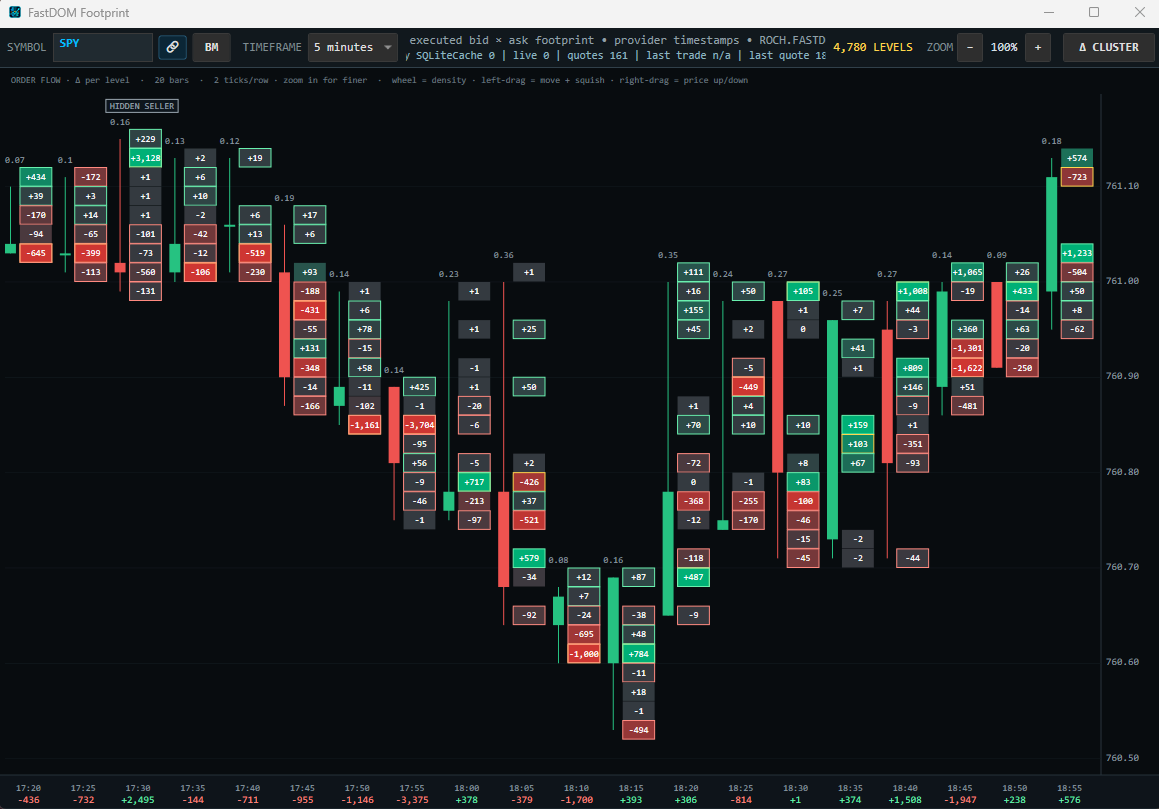
A candlestick tells you where price traveled. FastDOM’s FootPrint chart adds executed volume at each price, so you can inspect the buying and selling activity inside that move. Switch between bid × ask pairs and delta clusters to compare participation across levels, find the busiest price, and examine shifts in order flow as candles develop. In the delta-cluster view shown below, signed values and color intensity make the balance of classified buying and selling visible at a glance. Pair it with BookMap’s resting liquidity and your chart context to build a more informed execution plan.
Discover the tools behind every menu item—from a 24-symbol chart wall to multi-account execution and post-session review.
Compare up to 24 symbols in a tiled chart workspace. Use a shared timeframe, rearrange tiles by dragging their headers, and open a full chart from a symbol tile.
Good to knowRequires price history and quotes from the configured provider. This is a chart wall, not an automatic trade selector.
Build a workspace around the way you trade. Explore the tools behind the ladder, the chart, and the bigger picture.
Work directly from the DOM ladder or chart. Stage orders, track working orders, and adjust prices with drag-to-replace.
Purpose-built tools for execution, analysis, and a workspace that stays yours.
See bid, ask, price levels, working orders, and position context. Place and manage orders from the DOM.
DOM / ORDER CONTROLCandlesticks, volume, EMA 9/20, VWAP, session levels, and chart-based order management in one view.
PRICE / STRUCTUREFootprint bid × ask and delta views, Time & Sales, L2 Heat, and Bookmap liquidity visualization.
DEPTH / EXECUTED FLOWOptions Hedging Map and chart overlays surface estimated concentrations, gamma context, and expected-move bounds.
OPTIONS / ESTIMATESTrading Partner and Market Desk offer advisory AI analysis. Read-only guidance supports your review and decisions.
AI / ADVISORYConfigure hot buttons, shortcuts, sizes, and risk limits. Restore charts, symbols, timeframes, and window layouts.
WORKSPACE / CONTROLFastDOM combines order entry with local validation, order audit logging, and explicit cancel and flatten controls.
Build your first simulation workflow →Configure account and symbol rules, order sizes, data-staleness checks, and loss limits for your workflow.
Use the Orders window and position views to review working orders, cancellations, and broker-reported state.
Validate order actions and emergency controls in Simulation or an appropriate paper environment first.
Choose the broker and market-data setup that fits your workflow. Availability depends on your account, configuration, and data permissions.
Live account, order, and market-data integration with the Schwab Trader API.
Configure account-specific API keys and choose the paper or live endpoint for each account.
Connect through the NinjaTrader bridge for account routing and supported market data.
The NINJA MD toggle selects market data without changing the selected trading account or order router. L2 and executed-flow tools require compatible data. No broker endorsement is implied.
Start with a controlled practice session. Get comfortable with the workspace before connecting a live account.
Open the supplied FastDOM application folder and launch FastDOM.exe. Keep its supporting files and configuration alongside it.
Building from source requires the .NET 8 SDK; running a self-contained build does not.
Choose Simulation before practicing order entry. Select a symbol, set a modest quantity, and check the displayed mode and quote status.
Simulation uses mock market data; it is for learning controls, not evaluating live execution quality.
Use Chart for price action and Orders for working orders. Open More for FootPrint, BookMap, L2 Heat, Time & Sales, Partner, or Desk.
Configure hot buttons and review your actual hotkey bindings before arming them. Data-dependent views need a compatible provider.
In Simulation, stage an order, review side, quantity, type, and price, then submit. Practice replacement, cancellation, and closing a position.
Confirm the final position and order state. Review risk limits and emergency controls before any live session.
Open Configuration → Brokers. Enable the integration you need and complete its setup. For Schwab, use “Set up Schwab applications…” and the reconnect flow. Alpaca account rows specify Paper or Live; NinjaTrader requires its bridge.
Confirm account, mode, permissions, quote freshness, and risk settings before submitting a live order.
No. FastDOM is a native Windows desktop application. This website introduces its features and explains the workflow.
Trading Partner, Market Desk, Learn, and Check Trend are advisory. Separately, Position Manager can manage protection through the order and risk system; Momentum Swing has an explicit AutoTrade mode and defaults to AlertsOnly. Review each feature before enabling it.
It estimates public option-chain positioning and hedge sensitivity. It does not know dealer inventory or forecast direction. Data coverage, quote quality, and model assumptions affect the result.
This application copy includes an opt-in SQLite archive under Configuration → Storage. Derby remains the default. Switching requires a restart and does not migrate history automatically. Morning Scanner is supported only with Derby.
Get the unsigned Windows x64 Beta on the download page, with setup instructions and a file checksum. Start in Simulation; clean-machine onboarding verification is still in progress.